If you’ve ever had to wrangle Excel files and turn them into clean, professional PDFs, you know the struggle is real. I’ve lost count of how many times a spreadsheet looked perfect on my screen… only to morph into some funky, broken mess the moment I use excel to PDF converter.
Maybe you’ve been there too – charts stretching across pages like melted cheese, columns misbehaving, page breaks showing up wherever they feel like it, or colors going dull. I’ve seen it all. That’s exactly why I decided to run a deep, hands-on test across several tools to figure out which one actually delivers full control and perfect formatting during conversion.
My mission today?
Help you skip all that stress by showing you the best tools for this job. The comparison is completely fair, since I tested each tool in exactly the same way.
Take a comfortable seat, grab a snack, and together, let’s go through the issue.
Let me keep it 100 with you – Excel is powerful, super flexible & honestly, one of the MVPs of work life. But the second you need to convert xls to pdf, everything becomes unpredictable.
Here are the classic headaches:
- Charts shift or disappear
- Borders change sizes
- Rows randomly split across pages
- Conditional formatting vanishes
- Images stretch like taffy
- Fonts look like they went through witness protection
Well I don’t have enough time to deal with such headaches and wanted to find the best tool to convert xls to PDF– one that keeps everything pixel-perfect.
Let’s dig in and see how each tool stacked up.
Test Criteria: How I Evaluated All Tools
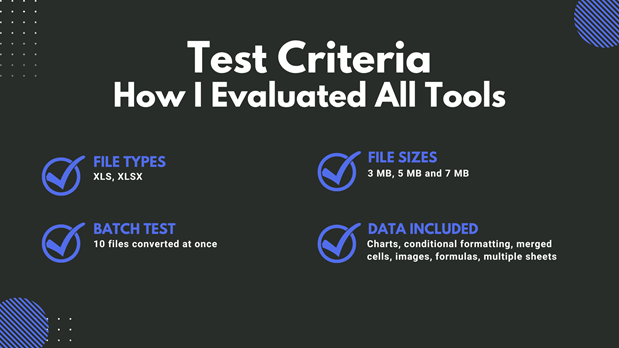
To keep everything fair and square, I tested each tool using the exact same files:
Test Files
- File types: XLS, XLSX
- File sizes: 3 MB, 5 MB and 7 MB
- Batch test: 10 files converted at once
- Data included: Charts, conditional formatting, merged cells, images, formulas, multiple sheets
I wasn’t playing around here – I loaded these files with common real-world elements that usually break during conversion.
Evaluation Factors
I judged every excel to pdf converter based on:
Speed
How fast did it process a 5 MB XLS file? Did batch conversion freeze up the tool?
Ease of Use
Did I need extra steps? Any confusing menus? Was drag-and-drop available?
Formatting Accuracy
This was the big one. I checked:
- Charts
- Tables
- Cell colors
- Font sizes
- Margins
- Orientation
- Page breaks
- Headers & footers
Features
Things like:
- Batch processing
- Security options
- Cloud storage support
- Layout controls
- Editing tools
Pricing
What is protected by a paywall and what is free?
Limitations
File size caps? Limits per hour? Watermarks? Annoying pop-ups?
These criteria helped me find the best excel to pdf converter for different types of users.
Quick PDF Tool Reviews
Here I’m gonna be sharing my honest review. Reviews of each tool that I tried out, just being real, and telling you exactly how it went.
I messed with all of ’em back to back, so you’re getting the straight-up, no-fluff rundown.
1. iLovePDF2.com
I wanted a tool that could take my messy spreadsheet – full of charts, financial tables, budget sheets, and color coding – and convert it cleanly.
Here’s what I did:
- Uploaded a 5 MB XLS file
- Chose “Convert to PDF”
- Left settings on default
- Hit Convert
Bam. Perfect PDF.
Not one element was out of place. Even the tiny chart labels stayed crisp.
Then I ran batch conversion with 10 files. iLovePDF2 powered through like a champ – no delays, no freezes.
- Precision
- Control
- Speed
- Zero formatting surprises
And after testing five tools, I can confidently say this one leads the pack.
Main Features
i Love PDF 2 packs a punch, especially for Excel conversions:
- Ultra-high accuracy formatting
- Fast batch conversion
- Option to set orientation
- Margin controls
- Page size adjustments
- Secure cloud and local file support
- No watermarks on the free version
- High-speed servers
Overview
iLovePDF2 is for everyone who wants a simple, fast & reliable way to convert excel to pdf without any hassle. It works well for everyone – students juggling assignments, accountants handling numbers, business owners and freelancers managing documents, or even big teams needing something that simply gets the job done smoothly.The tool focuses on:
Pros
- Fastest processing of all tools tested
- Best formatting accuracy
- Free plan handles large files
- Easy enough for total beginners
- Perfect for professionals too
Cons
- Requires internet connection
- UI is simple – advanced users may want more detailed customization
Pricing
- Free plan: Full access to Excel-to-PDF
Quick Verdict
The absolute best tool for anyone who wants full control, clean formatting, and fast conversions without paying a single penny. Perfect as your go-to excel to pdf converter online.
2. Smallpdf.com
Single files worked fine. But trying to convert multiple spreadsheets at once? The tool struggled and slowed down noticeably.
Charts were okay, but some text spacing changed slightly.
Main Features
- Nice interface
- Smooth drag-and-drop
- Decent xlsx to pdf converter
Overview
Smallpdf has always appeared to be that standard PDF program that everyone has heard of, at least: very straightforward, easy to use, and perfect for beginners. You are not inundated with buttons or menus. It will complete the task without any problems if you simply log in and attach your file.
Pros
- Simple UI
- Good for small spreadsheets
Cons
- Batch conversion locked behind subscription
- Slow on bigger files
- Formatting isn’t perfect
Pricing
- Free: Limited
- Pro: $12/month
Quick Verdict
Best for light users who convert a file or two per week.
3. Adobe Acrobat Online
Single XLS files converted great. No complaints there. But the moment I tried batch processing; I hit a paywall. Conversion also took longer than expected.
Main Features
- High-quality formatting
- Easy-to-understand layout
Overview
Adobe is the godfather of all things PDF; thus, it stands to reason that they would provide a Online Xls to Pdf Converter Free. Nonetheless, despite its name, the converter can feel lethargic and forceful towards Adobe’s ecosystem, which some users may dislike.
Pros
- Excellent formatting
- Trusted brand
Cons
- Requires login
- Batch conversion isn’t free
- Slower than expected
Pricing
- Free: Basic conversion
- Paid: $13/month
Quick Verdict
Good for Adobe users, but not the top option if you want free, unlimited conversion.
4. SodaPDF.com
I tried converting my Excel to PDF with SodaPDF, thinking it’d be a quick win. For small spreadsheets, it was chill and got the job done. But then I ran a bigger file with the charts, and the visuals slid around as if they had a mind of their own. Some columns were even overlapping, and I just sat there like, “Bruh, seriously?”
Main Features
- PDF editing
- Cloud integration
- Simple conversion tools
Overview
SodaPDF gives consumers freedom in how they work by providing both desktop and online versions. Although it’s not as well known as its rivals. It’s nonetheless commonly use and consistently completes the task.
Pros
- User-friendly
- Good for simple files
Cons
- Not reliable for complex formatting
- Slow batch processing
- Free plan is limited
Pricing
- $8–$15 per month
Quick Verdict
Decent for casual use, not great for detailed spreadsheets.
5. PDF24 Tools
I fired up PDF24 to convert one of my Excel reports, thinking it’d breeze right through. Basic sheets behaved, nothing out of place. But when I did a file that had multiple tabs, only some of the sheets made it into the final PDF like it just dipped out halfway. I opened the PDF and went, “Bro… where did the rest of my workbook go?”
Main Features
- 100% free forever
- Basic Excel-to-PDF support
Overview
PDF24 is fully free and simplistic, however its simplicity can be restrictive. The tools appear plain and old since they lack a sophisticated design or a modern user interface. It does the job, but customers who want advance functionality or a polished experience may find it underwhelming and cumbersome for everyday usage at times.
Pros
- Totally free
- No sign-up
Cons
- Formatting accuracy hit or miss
- No batch conversion
- Slower than other tools
Pricing
- Free forever
Quick Verdict
Good if you’re broke or in a rush – but don’t expect perfection.
Comparison Table: Which Tool Truly Wins?
| Tool | Speed | Formatting | Free Features | Batch Support | Best For |
| iLovePDF2 | (5/5) | (5/5) | Excellent | ✔ Free | Everyone |
| Smallpdf | (3/5) | (4/5) | Limited | ✔ Paid | Light users |
| Adobe Online | (5/5) | (5/5) | Medium | ✔ Paid | Adobe fans |
| SodaPDF | (3/5) | (2/5) | Limited | ✔ Paid | Simple files |
| PDF24 | (4/5) | (3/5) | Full Free | ✖ No | Basic needs |
Suggestions for Improvement
1. iLovePDF2
- Add advanced layout controls for power users who want deeper Excel to PDF customization.
- Offline mode or desktop app so users aren’t tied to an internet connection.
- More automated presets, for example: “Financial Reports Mode”, “Charts Mode”, “Invoice Mode”.
- Built-in preview window to show precisely how the PDF will appear before exporting.
2. Smallpdf
- Improve batch conversion performance so that large sets of spreadsheets don’t lag.
- Smoothen spacing, particularly with highly text-heavy Excel sheets.
- Offer limited free batch conversion, even a small daily quota would help casual users.
- Add more Excel-specific settings such as margin controls or page-fit options.
- Increase the accuracy of chart-heavy documents where formatting still shifts.
3. Adobe Acrobat Online
- Speed up online conversions, especially for bigger spreadsheets.
- Offer at least light free batch conversion to match competitors
- Reduce ecosystem friction-too many prompts pushing users toward paid Adobe tools.
- Provide more Excel import options, such as selecting which sheets to import.
- Smarter auto-detection for orientation, margins and scaling.
4. SodaPDF
- Stabilize chart and table rendering so that elements stop shifting or overlapping.
- Improve accuracy, particularly for grid-heavy spreadsheets and financial reports.
- Make batch processing faster-performance is presently poor with large jobs.
- Add an “Excel-safe” conversion mode that prioritizes layout preservation.
- Expand free version with at least some multi-file capabilities.
5. PDF24 Tools
- Fix multi-sheet workbook handling so all tabs actually export.
- Improve the consistency of formatting, in particular fonts and page breaks.
- Add basic batch conversion, even if limited to 3–5 files.
- Modernize the interface to make it less old school and more intuitive.
- Provide more control options such as page size or orientation settings.
Summary & Insights
When attempting to create a tidy, professional PDF, your spreadsheet shouldn’t cause you any trouble. With the correct tool, it can be quick, simple & dependable. To achieve the highest level of precision.
If accuracy is your top priority.
If you want something free but powerful.
If you handle spreadsheets daily.
Then iLovePDF2.com is hands down the tool you should choose.
Give it a spin – your spreadsheets will look flawless every time.